> ## Documentation Index
> Fetch the complete documentation index at: https://docs.perplexity.ai/llms.txt
> Use this file to discover all available pages before exploring further.
# Perplexity on Stripe Projects
> Provision a Perplexity API project, API key, and credits from your terminal or coding agent with the Stripe Projects CLI.
export const SonarDeprecationNotice = ({showGuideLink = true}) =>
Sonar Chat Completions is now Agent API. Sonar will be supported until September 27, 2026.{showGuideLink && <> Migration guide here.}
;
## Overview
[Stripe Projects](https://projects.dev) provisions third-party services from your terminal or coding agent. One command creates a Perplexity API project in your own account, mints a key, and writes it to your Stripe project's `.env`:
```bash theme={null}
stripe projects add perplexity/api
```
`perplexity/api` is the service. Once added, `update`, `rotate`, and `remove` refer to it by the resource name `perplexity-api`, and account-level commands like `open`, `spend`, and `link` take the provider name `perplexity`.
A Perplexity API project is the billing and key boundary in the API Console. The one Stripe Projects creates is a normal project in your account. Open it in the [API Console](https://console.perplexity.ai) any time to see balance, usage, keys, and billing settings. On this page, "Stripe project" means the directory the CLI manages and "Perplexity API project" means the API project it provisions.
## Prerequisites
* A [Stripe](https://stripe.com) account
* The [Stripe CLI](https://docs.stripe.com/stripe-cli) with the Projects plugin:
```bash macOS/Linux theme={null}
brew install stripe/stripe-cli/stripe
stripe plugin install projects
```
```bash npm theme={null}
npm install -g @stripe/cli
stripe plugin install projects
```
You don't need an existing Perplexity account. The `add` flow creates one from your Stripe-verified email if needed. You do need a payment method on your Stripe account: Stripe asks for one before provisioning any paid service.
## Quickstart
```bash theme={null}
stripe projects init my-app
```
The first run signs you in to Stripe and creates a Stripe project in the current directory. If your Stripe account has no payment method yet, add one now so the next step doesn't stop at a Checkout page:
```bash theme={null}
stripe projects billing add
```
```bash theme={null}
stripe projects add perplexity/api
```
This creates a Perplexity API project, mints a key, and writes it to `.env` as `PERPLEXITY_API_KEY`:
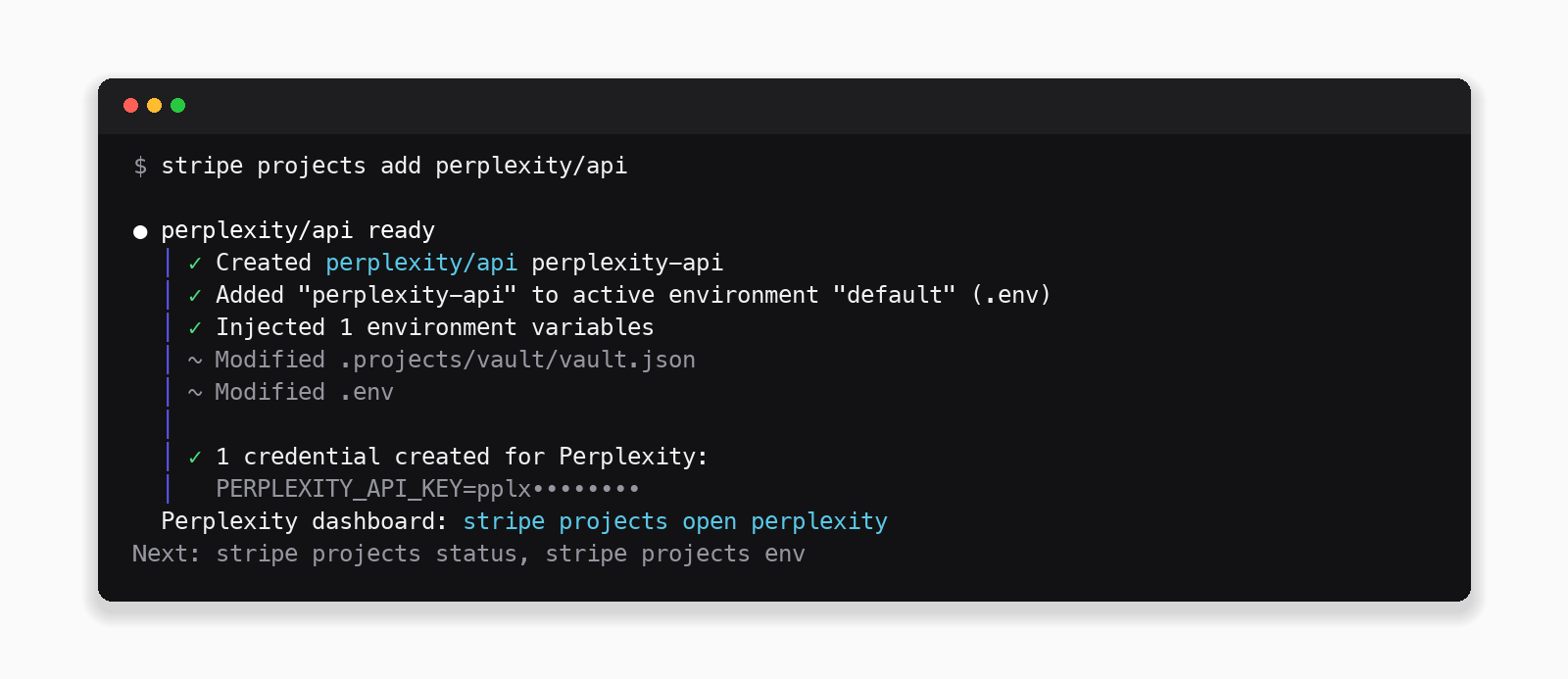 Creating a new Perplexity API project prompts for a \$10 minimum credit purchase, charged to your Stripe account's payment method. See [Billing and credits](#billing-and-credits) for the full rules.
The [official SDKs](/docs/sdk/overview) read `PERPLEXITY_API_KEY` from the environment. The examples use the `low` [preset](/docs/agent-api/presets), which sets a default model and web search configuration:
```python Python theme={null}
from perplexity import Perplexity
client = Perplexity() # reads PERPLEXITY_API_KEY from the environment
response = client.responses.create(
preset="low",
input="Summarize the top AI infrastructure news from this week.",
)
print(response.output_text)
```
```typescript Typescript theme={null}
import Perplexity from "@perplexity-ai/perplexity_ai";
const client = new Perplexity(); // reads PERPLEXITY_API_KEY from the environment
const response = await client.responses.create({
preset: "low",
input: "Summarize the top AI infrastructure news from this week.",
});
console.log(response.output_text);
```
```bash cURL theme={null}
curl https://api.perplexity.ai/v1/agent \
-H "Authorization: Bearer $PERPLEXITY_API_KEY" \
-H "Content-Type: application/json" \
-d '{
"preset": "low",
"input": "Summarize the top AI infrastructure news from this week."
}' | jq
```
If you get text back, the key is live and billing is wired up. The SDKs expose it as `output_text`; the raw cURL response has it as a `message` item inside `output`. The same key works across the API platform, including Agent API and Search API.
To open the Perplexity API project in the API Console and see usage, balance, and keys:
```bash theme={null}
stripe projects open perplexity
```
## Billing and credits
Perplexity API usage is prepaid: you buy credits, usage draws the balance down. For a Perplexity API project created by Stripe Projects, credit purchases charge your Stripe account's payment method, so you never enter a card on the Perplexity side.
**On provision**
* Creating a new dedicated Perplexity API project prompts for a \$10 minimum initial credit purchase.
* If you already administer a Perplexity API project, the CLI offers to connect it instead of creating a new one. Connected projects keep their existing Perplexity billing, so credit purchases for them stay in the API Console (see [Connect an existing Perplexity API project](#connect-an-existing-perplexity-api-project)).
**Top up after provisioning**
```bash theme={null}
# resource name, then service
stripe projects update perplexity-api perplexity/api \
--config '{"buy_credits_usd": 25}'
```
| Setting | When | What it does |
| --------------------- | -------------------- | -------------------------------------------------------------------------------------------------- |
| `initial_credit_usd` | at `add` | One-time credit purchase at provision (min \$10) |
| `buy_credits_usd` | at `update` | One-time top-up (min \$10) |
| `auto_recharge` | anytime | Automatically buy credits when the balance runs low. Requires `recharge_amount_usd` when turned on |
| `recharge_amount_usd` | with `auto_recharge` | Amount purchased by each automatic recharge (min \$10) |
The CLI prompts for these when needed, and agents pass them with `--config`. The same settings are editable in the API Console, and changes from either place apply to the same Perplexity API project.
**Check spend**
```bash theme={null}
stripe projects spend perplexity
```
Creating a new Perplexity API project prompts for a \$10 minimum credit purchase, charged to your Stripe account's payment method. See [Billing and credits](#billing-and-credits) for the full rules.
The [official SDKs](/docs/sdk/overview) read `PERPLEXITY_API_KEY` from the environment. The examples use the `low` [preset](/docs/agent-api/presets), which sets a default model and web search configuration:
```python Python theme={null}
from perplexity import Perplexity
client = Perplexity() # reads PERPLEXITY_API_KEY from the environment
response = client.responses.create(
preset="low",
input="Summarize the top AI infrastructure news from this week.",
)
print(response.output_text)
```
```typescript Typescript theme={null}
import Perplexity from "@perplexity-ai/perplexity_ai";
const client = new Perplexity(); // reads PERPLEXITY_API_KEY from the environment
const response = await client.responses.create({
preset: "low",
input: "Summarize the top AI infrastructure news from this week.",
});
console.log(response.output_text);
```
```bash cURL theme={null}
curl https://api.perplexity.ai/v1/agent \
-H "Authorization: Bearer $PERPLEXITY_API_KEY" \
-H "Content-Type: application/json" \
-d '{
"preset": "low",
"input": "Summarize the top AI infrastructure news from this week."
}' | jq
```
If you get text back, the key is live and billing is wired up. The SDKs expose it as `output_text`; the raw cURL response has it as a `message` item inside `output`. The same key works across the API platform, including Agent API and Search API.
To open the Perplexity API project in the API Console and see usage, balance, and keys:
```bash theme={null}
stripe projects open perplexity
```
## Billing and credits
Perplexity API usage is prepaid: you buy credits, usage draws the balance down. For a Perplexity API project created by Stripe Projects, credit purchases charge your Stripe account's payment method, so you never enter a card on the Perplexity side.
**On provision**
* Creating a new dedicated Perplexity API project prompts for a \$10 minimum initial credit purchase.
* If you already administer a Perplexity API project, the CLI offers to connect it instead of creating a new one. Connected projects keep their existing Perplexity billing, so credit purchases for them stay in the API Console (see [Connect an existing Perplexity API project](#connect-an-existing-perplexity-api-project)).
**Top up after provisioning**
```bash theme={null}
# resource name, then service
stripe projects update perplexity-api perplexity/api \
--config '{"buy_credits_usd": 25}'
```
| Setting | When | What it does |
| --------------------- | -------------------- | -------------------------------------------------------------------------------------------------- |
| `initial_credit_usd` | at `add` | One-time credit purchase at provision (min \$10) |
| `buy_credits_usd` | at `update` | One-time top-up (min \$10) |
| `auto_recharge` | anytime | Automatically buy credits when the balance runs low. Requires `recharge_amount_usd` when turned on |
| `recharge_amount_usd` | with `auto_recharge` | Amount purchased by each automatic recharge (min \$10) |
The CLI prompts for these when needed, and agents pass them with `--config`. The same settings are editable in the API Console, and changes from either place apply to the same Perplexity API project.
**Check spend**
```bash theme={null}
stripe projects spend perplexity
```
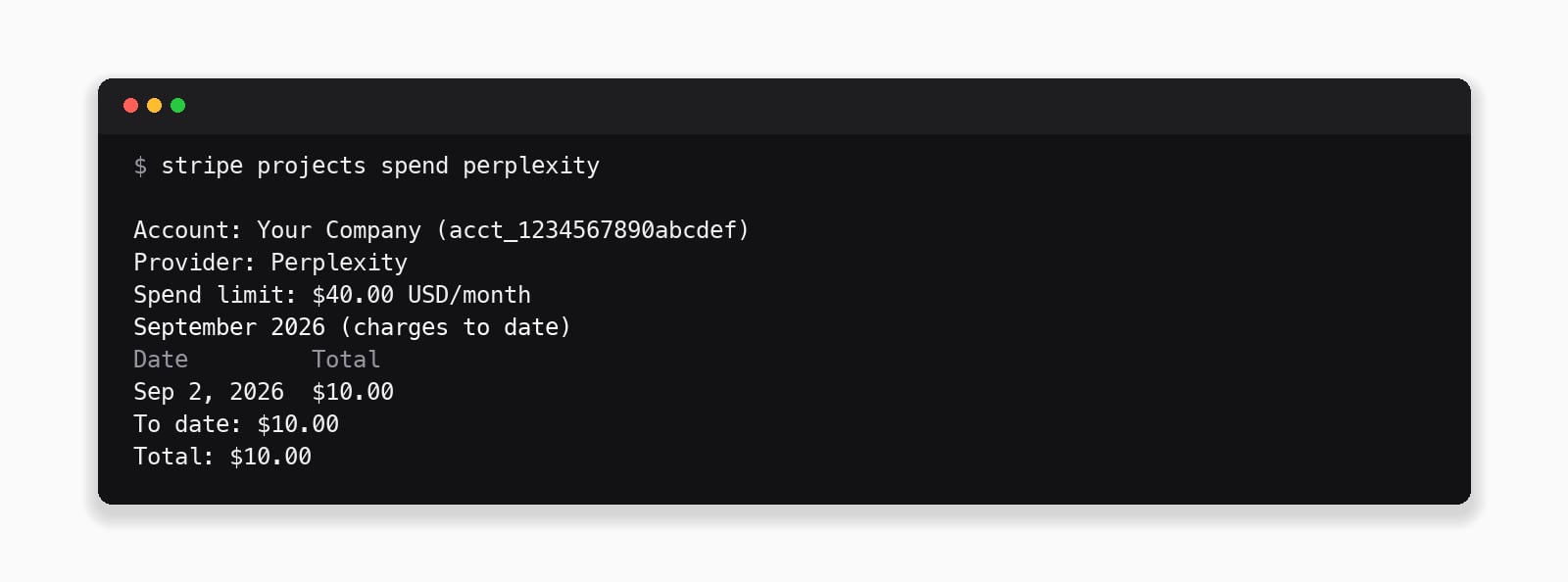 Stripe applies a monthly spending limit per provider. Adjust it with `stripe projects billing update --limit 50 --provider perplexity`. A purchase that would exceed the limit is declined; raise the limit and retry.
If you run out of credits, the key is blocked until you add more. Enable `auto_recharge` ahead of time so credits are added automatically when the balance runs low.
## Connect an existing Perplexity API project
Your Stripe account connects to exactly one Perplexity API project. The first time you run `add`, if your Stripe-verified email already administers Perplexity API projects, the CLI asks whether to create a new one or connect an existing one:
* **Create a new dedicated Perplexity API project (recommended)**
* One of your existing Perplexity API projects, listed by name
Each additional Stripe project you run `add` in gets its own API key, all minted inside that one Perplexity API project. Other users on the same Stripe account can run `add` too, but only if they are an Admin of that Perplexity API project.
You can also make this choice up front, before adding Perplexity to a Stripe project:
```bash theme={null}
stripe projects link perplexity
```
If you connect an existing Perplexity API project, it keeps its existing Perplexity billing. Credit purchases through Stripe Projects open that project's billing page in the API Console instead of charging your Stripe payment method. Only keys minted through Stripe Projects are visible to Stripe; your other keys are not.
## Rotate or remove the key
```bash theme={null}
stripe projects rotate perplexity-api # mint a new key, update .env
stripe projects remove perplexity-api # deprovision and revoke
```
* **Rotate** mints a fresh key and updates `.env`. The old key keeps working for 24 hours so running deployments don't break mid-rotation.
* **Remove** deprovisions this Stripe project's key. Your Perplexity API project, credits, and any other keys are untouched, and it stays visible in the API Console.
`remove` revokes immediately, including a rotated-out key still inside its 24-hour grace window.
To disconnect Perplexity from your Stripe account entirely, delete the Perplexity API project in the API Console. That revokes every key in it and releases the Stripe account, so the next `add` creates or connects a fresh Perplexity API project. The console only deletes a project whose credit balance is zero. `stripe projects unlink perplexity` only forgets the connection in the current Stripe project directory; the Perplexity API project and its keys are untouched, and `link` reconnects to it.
## Use with coding agents
Claude Code, Cursor, Codex, and other agents can run the full `add` flow non-interactively.
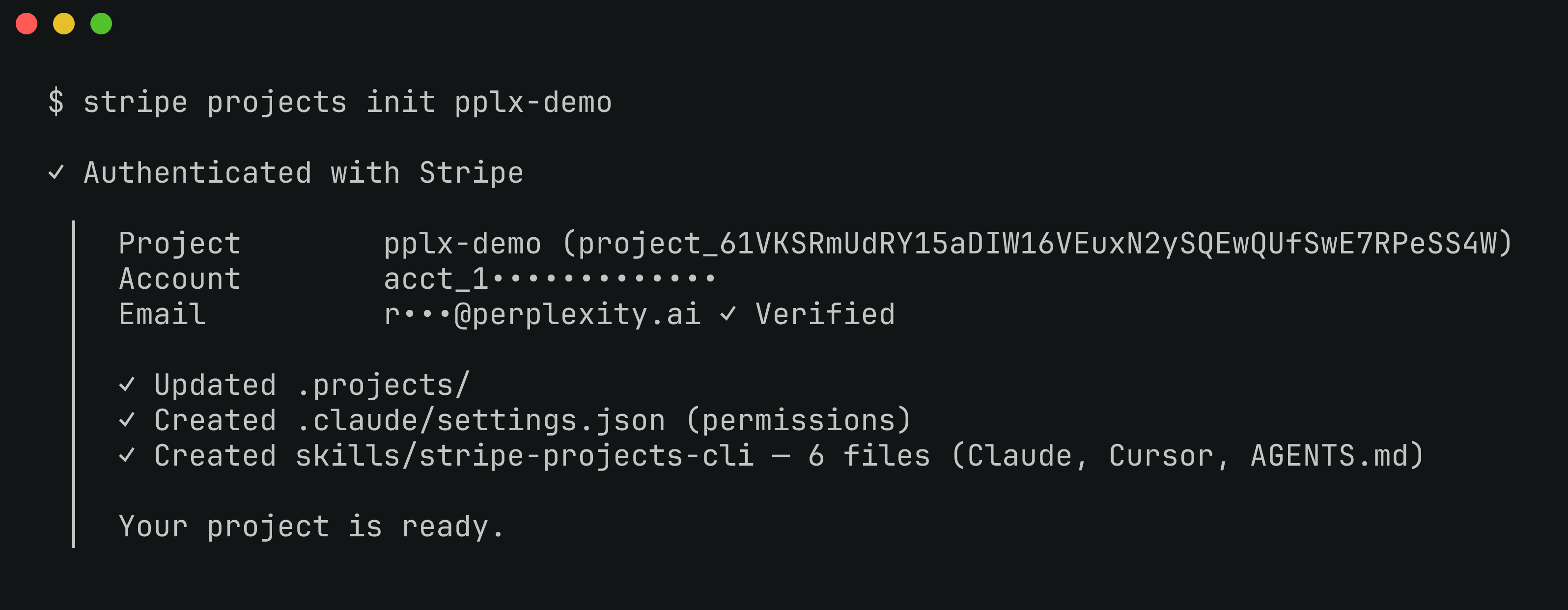
`stripe projects init` writes a skill into the Stripe project (Claude Code, Cursor, and `AGENTS.md` variants):
Stripe applies a monthly spending limit per provider. Adjust it with `stripe projects billing update --limit 50 --provider perplexity`. A purchase that would exceed the limit is declined; raise the limit and retry.
If you run out of credits, the key is blocked until you add more. Enable `auto_recharge` ahead of time so credits are added automatically when the balance runs low.
## Connect an existing Perplexity API project
Your Stripe account connects to exactly one Perplexity API project. The first time you run `add`, if your Stripe-verified email already administers Perplexity API projects, the CLI asks whether to create a new one or connect an existing one:
* **Create a new dedicated Perplexity API project (recommended)**
* One of your existing Perplexity API projects, listed by name
Each additional Stripe project you run `add` in gets its own API key, all minted inside that one Perplexity API project. Other users on the same Stripe account can run `add` too, but only if they are an Admin of that Perplexity API project.
You can also make this choice up front, before adding Perplexity to a Stripe project:
```bash theme={null}
stripe projects link perplexity
```
If you connect an existing Perplexity API project, it keeps its existing Perplexity billing. Credit purchases through Stripe Projects open that project's billing page in the API Console instead of charging your Stripe payment method. Only keys minted through Stripe Projects are visible to Stripe; your other keys are not.
## Rotate or remove the key
```bash theme={null}
stripe projects rotate perplexity-api # mint a new key, update .env
stripe projects remove perplexity-api # deprovision and revoke
```
* **Rotate** mints a fresh key and updates `.env`. The old key keeps working for 24 hours so running deployments don't break mid-rotation.
* **Remove** deprovisions this Stripe project's key. Your Perplexity API project, credits, and any other keys are untouched, and it stays visible in the API Console.
`remove` revokes immediately, including a rotated-out key still inside its 24-hour grace window.
To disconnect Perplexity from your Stripe account entirely, delete the Perplexity API project in the API Console. That revokes every key in it and releases the Stripe account, so the next `add` creates or connects a fresh Perplexity API project. The console only deletes a project whose credit balance is zero. `stripe projects unlink perplexity` only forgets the connection in the current Stripe project directory; the Perplexity API project and its keys are untouched, and `link` reconnects to it.
## Use with coding agents
Claude Code, Cursor, Codex, and other agents can run the full `add` flow non-interactively.
`stripe projects init` writes a skill into the Stripe project (Claude Code, Cursor, and `AGENTS.md` variants):
 To install the skill globally instead:
```bash theme={null}
npx skills add https://docs.stripe.com --skill stripe-projects -g -y
```
Attach a payment method before the agent session so it never hits a browser prompt:
```bash theme={null}
stripe login # if you haven't yet
stripe projects billing add
```
Agents use the non-interactive form. `--confirm-paid-service` is required when a purchase is involved:
```bash theme={null}
stripe projects add perplexity/api \
--config '{"initial_credit_usd": 10}' \
--json --yes --confirm-paid-service --accept-tos
```
Then try a prompt like:
> Add Perplexity to this app with Stripe Projects, then build a `/research` endpoint that calls the Agent API with the `low` preset.
## Next steps
Presets, tools, and the full Agent API surface for your first build.
Ranked, real-time web results as structured data.
What credits buy across models, tools, and APIs.
To install the skill globally instead:
```bash theme={null}
npx skills add https://docs.stripe.com --skill stripe-projects -g -y
```
Attach a payment method before the agent session so it never hits a browser prompt:
```bash theme={null}
stripe login # if you haven't yet
stripe projects billing add
```
Agents use the non-interactive form. `--confirm-paid-service` is required when a purchase is involved:
```bash theme={null}
stripe projects add perplexity/api \
--config '{"initial_credit_usd": 10}' \
--json --yes --confirm-paid-service --accept-tos
```
Then try a prompt like:
> Add Perplexity to this app with Stripe Projects, then build a `/research` endpoint that calls the Agent API with the `low` preset.
## Next steps
Presets, tools, and the full Agent API surface for your first build.
Ranked, real-time web results as structured data.
What credits buy across models, tools, and APIs.